Saving a hotel, station or attraction does not mean its details will remain available without a connection. A useful offline kit keeps essential addresses, confirmed bookings, checkpoints and fallbacks readable without Wi-Fi or mobile data. It does not replace identification, tickets or required credentials, or prove that a venue or road is available now.
All example dates, places and filenames are invented placeholders, not real addresses, ticket codes or bookings.
1. Make one minimum information card
Do not begin with dozens of unrelated screenshots. Start with a short card containing the information you would need first:
- trip dates, version and last-check time;
- exact arrival, accommodation, main-activity and departure points, down to the entrance or terminal;
- local date and time for each fixed point, labelled pending, confirmed, changed or cancelled;
- a phone verified through an official source before departure (with country/region code abroad), plus a physical desk or meeting point; keep online links for reconnection;
- necessary journeys and checked fallbacks;
- required originals or valid credentials, plus the next online recheck time.
Copy this template:
TRAVEL CARD | version <v1> | checked <YYYY-MM-DD HH:MM>
Dates: <outbound date> to <return date>
Arrival: <station/terminal/exit> | <local time> | <pending/confirmed>
Stay: <invented hotel placeholder> | <full address checked against booking> | latest check-in time <time>
Main fixed point: <actual entrance> | <booking window> | <pending/confirmed>
Return: <station/terminal/entrance> | <local time> | leave previous point by <time>
Offline contact: <officially verified phone with country/region code if needed> | <physical desk/meeting point>
Offline files: <on-device folder> | map area <whole required route covered/retest needed>
Credentials: <original or valid credential required by operator>
No-signal fallback: <paper card location> | <companion's secret-free copy>
Recheck: <time and change trigger>
Keep passwords, one-time codes, payment codes, full identity-document images and complete booking numbers out. Retain only necessary personal information, keep the device locked and never post files to a public group. Paper and companion copies should contain no secrets.
2. Store the essential files on the device
“Saved”, “sent in chat” and “in cloud storage” do not mean available locally. Export ordinary files to a folder reachable through the file manager. Check that each item is a real file, not a web link or online-only preview.
A simple folder can look like this:
Travel_Kit_YYYYMMDD/
  00_Master_Card_v1.txt
  01_Outbound_Confirmed_v1.pdf
  02_Hotel_Confirmed_v1.pdf
  03_Return_Confirmed_v1.pdf
  04_Route_Hotel_to_Departure_Entrance_v1.png
  90_Superseded/
Use dates, purpose, status and versions instead of “Screenshot 1” or “final latest”. After a change, move the old file to 90_Superseded and increase the new version. Preserve date, place and status without collecting unrelated identity or payment details.
Article 13 of the official China Railway passenger rules says that the itinerary information notice for a ticket bought through the 12306 website can be downloaded or printed, but cannot be used as the credential for travel. It helps offline checking but is not a universal boarding substitute. Follow each operator's current rules.
3. Cover the whole journey and understand the map's limits
List journeys needing offline support, such as “hotel door → interchange → departure entrance”. Download the whole chain, not just the destination pin. The plan is incomplete if part lies outside the area or depends on a live transit service.
Google Maps Help for Android says downloads are unavailable in some countries or regions and the whole route must be inside the area. Offline transit, cycling and walking directions are unavailable; driving lacks live traffic and alternate routes. Downloads need updating. Apple Support limits its guidance to Maps in iOS 17 or later and select areas. It describes several direction modes, but downloads do not sync across devices. Neither page proves a particular phone or journey will work.
Test the app, device, region and mode you will use. Stored opening hours and roads are not proof of current conditions. Never use an offline map to enter a closed or restricted route.
4. Separate fallbacks for no power, a lost device and companions
Keep normal screen locks and security enabled. A secret-free paper card can hold the accommodation address, key points, an officially verified phone, and a physical desk or meeting point. Online links are for use after reconnection. Ask a companion to save and open the same card. Do not distribute complete documents, payment codes or recovery details.
If a device is lost, use a trusted device and official channels to protect it and the accounts, then use the secret-free copy. The kit is not proof of identity. Solo travellers can keep the paper card securely away from the phone.
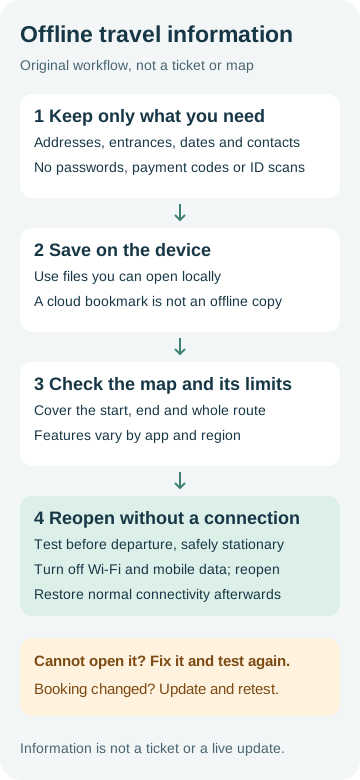
5. Test without a network connection
Test before departure while stationary in a safe, well-lit place. Do not run the no-signal test while walking, driving, cycling or needing to watch your surroundings. Know how to reconnect, then turn off both Wi-Fi and mobile data. Flight mode with Wi-Fi enabled can make an online test look offline.
Open each essential file from the file manager, close it, then reopen it. Fully close and reopen the map app; check the downloaded area, places and intended offline feature. Confirm the companion or paper copy makes sense alone. Restore Wi-Fi and mobile data and confirm normal reconnection.
Invented pass: 00_Master_Card_v1.txt shows “Hotel A (invented) → South Station entrance (invented)”; hotel and return PDFs reopen; the area covers the whole journey; and a companion opens the secret-free card. Invented failure: the local folder has no complete hotel file, only a chat thumbnail or online preview, or the final route segment is outside the map. Export or redownload, then repeat the test.
6. Update and retest after a booking or route change
After any change to accommodation, transport, entrances or companions, update the card, file status and map area. Mark the old version superseded before saving the new confirmed file. Reconnect and check the latest booking details and notifications; never infer live status from an old screenshot.
After a route change, check the new origin, interchange and destination, then repeat the test. Confirm the download still exists and is current; another device may not have it under the same account.
After a change, verify every copy of the new version
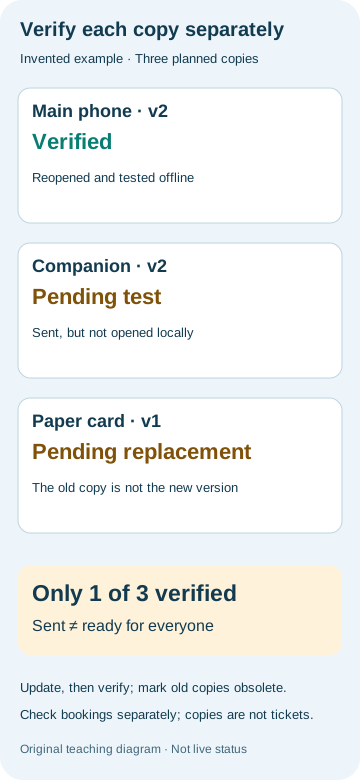
Start only after the supplier has confirmed the accommodation, transport or activity change, and check the order status separately. Changing a document to v2 does not prove that the booking change succeeded. List only the copies your group will actually carry: for example, the main device's local file, a companion's local file and a paper card without sensitive details. For each copy, record the version, actual venue entrance or transport terminal, local date and time, an officially verified phone or service desk, and the last check. “Sent” or “read” does not mean usable.
Mark the old copy superseded and store it safely so it cannot be mistaken for the current version. On each device, open the new file from local storage, close it and reopen it, then repeat the Section 5 no-signal test before departure while stationary in a safe place. Ask your companion to open their copy on their own device. Check every paper-card field, replace the card, and clearly mark v1 as superseded rather than leaving v1 and v2 looking equally current.
Invented status: main-device v2 has reopened and passed the no-signal test; companion v2 was only sent and has not been opened, so it is PENDING TEST; the paper card is still v1 and PENDING REPLACEMENT. Only 1 of 3 copies has passed, so the group is not ready.
Apple's offline Maps guidance gives one specific boundary: in select areas on iOS 17 or later, offline map downloads do not sync across devices. Checked on 26 September 2026 (25 September UTC), this does not establish how every file or app behaves. Copy-by-copy acceptance is this guide's editorial method, not an Apple requirement.
Copyable receipt:
Copy: <main/companion/paper> | version: <v2>
Trip location: <actual entrance/terminal> | local time: <YYYY-MM-DD HH:MM>
Copy location: <local folder/paper location>
Official contact: <secret-free phone/physical desk> | last checked: <time>
Old version: <superseded> | electronic reopen/offline test: <pass/pending/not applicable to paper>
Paper fields/version check: <pass/replace/not applicable to electronic copy>
Next action and owner: <resave/replace paper/retest>
On failure, reconnect, save again and retest, or prepare and check a paper fallback without identity numbers, passwords, payment codes or booking codes. Until a copy is confirmed usable, put any separate journey that depends on it on hold. These files do not replace the identification or valid tickets required by the operator; check booking status separately too.
7. Copy this pre-departure checklist
- [ ] Every address identifies the actual door, exit or terminal rather than only a city name.
- [ ] Essential bookings are ordinary local files, not cloud links or chat previews.
- [ ] Originals or valid credentials required by each operator are ready; a backup is not presented as a credential.
- [ ] The offline map covers the full necessary journey, and this device and travel mode have been tested.
- [ ] After both Wi-Fi and mobile data are off, files and the map still work after reopening.
- [ ] Paper and companion copies exclude passwords, payment codes, one-time codes and full identity documents.
- [ ] Connectivity is restored and live opening, road, booking and notice information is rechecked.
- [ ] After a booking, route or device change, the old version is superseded and the test is repeated.
This workflow is an editorial pre-trip checking method, not a guarantee that any app, venue or transport service will be available at a particular time. The three official pages were consulted on 25 September 2026. Recheck the rules that apply to your device, region and booking before departure.
Use the itinerary-planning tutorial to select essential checkpoints, then the hotel-location tutorial to verify the actual entrance and booking address. This page only turns confirmed information into a testable offline kit.