The biggest risk after a photo day is not delayed editing. It is having the work only on one memory card, one phone, or one library where edits and deletions synchronise. This tutorial creates date-and-source batches, copies while keeping every source, verifies an independent copy, and separates originals from sharing versions. It does not teach deletion, deduplication, formatting or overwrite renaming, and it recommends no storage product.
Use the Huangshan photography guide and Guilin photography guide for locations and field safety. This page begins after capture.
1. Write a copy-only, keep-the-source rule
Treat the phone, camera and each memory card as separate sources. End each day or shooting block with a batch such as 2026-10-03_Huangshan_Phone and 2026-10-03_Huangshan_Camera_A. These are invented names, not a real itinerary.
Use four boundaries:
- Copy from source to destination; do not move or cut.
- Leave the phone and used card unchanged during copying and verification.
- Do not overwrite duplicate names, format a card, run deduplication or bulk-rename source files.
- Stop if space is insufficient, hardware is unstable or transfer is interrupted. Keep the source and continue only under reliable conditions.
2. Separate dates and sources so duplicate names survive
Keep the names created by the phone or camera and separate sources with folders:
Travel_Photos_YYYYMMDD/
  Originals/
    Phone/
      2026-10-03_Batch01/
    Camera_A/
      2026-10-03_Batch01/
  Share/
  verification-log.txt
If both sources contain IMG_0001.JPG, their Phone and Camera_A paths preserve both. Copy photos, videos and related files according to the source's actual structure. Live Photos, RAW+JPEG and sidecar files have relationships that this tutorial's ordinary JPG/MP4 count does not describe; identify them from the device's documentation before counting.
Put separately exported sharing versions in Share. Do not crop, filter or overwrite files inside Originals. A smaller sharing copy is not an original backup, and the originals folder is not a public album.
3. Make the destination independent of the synchronised library
An independent copy sits outside the source phone or card, on another readable storage location or medium, and is not governed by deletion in the same synchronised library. A second folder on the same phone still disappears with that phone and does not meet this purpose. This tutorial requires no particular drive, reader or cloud service and promises neither regional availability, unlimited capacity nor successful recovery.
Apple's iCloud Photos page says edits and deletions appear across devices using the library, and iCloud Photos items are not duplicated in iCloud Backup. With optimised storage, the device may keep space-saving versions. Seeing an item across devices therefore does not by itself prove that an independent original copy exists.
Apple's archive and copy guidance includes exporting unmodified originals to an external location and warns that a copy from a Shared Album may not be full resolution. Google Photos Help distinguishes Original quality from Storage saver, which can compress or resize items. Record the quality and export type actually used rather than calling every copy an original. These are short scope notes, not instructions to change sync, account or security settings.
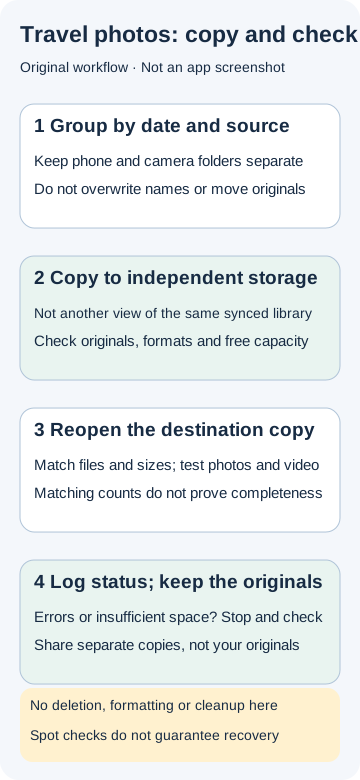
4. Open the copy and record the verification
After copying, work from the destination rather than relying on the source view:
- compare each relative path, filename and byte size from source to destination; compare checksums too when a suitable tool is available;
- open photos directly from each destination batch and confirm they are not thumbnails or online-only placeholders;
- open videos from the destination, check size and duration, and sample the beginning, middle and end;
- log the source, batch, times, destination, file count, checks performed and unresolved items.
Matching counts are only an initial signal. A set of 105 entries can still contain a truncated file, quality conversion or different treatment of paired assets. Per-file path and size checks, opening photographs and sampling videos reduce the chance of omissions but do not guarantee recovery. If an item fails to open, has the wrong size or belongs to an interrupted transfer, mark the batch “not verified”. Retain the source and the earlier copy, then recopy the affected item into a new batch or empty destination folder instead of overwriting either one. Deleting a source is not a verification method.
After verification, check where the source and copy are kept
This is an editorial packing check for travel, not an official backup standard or an extra deletion or formatting step. After completing the file checks above, stop somewhere safe and record who holds the source phone or used memory card and the independent copy, and which container holds each. Keep these locations in a private log, not a public message. If both are in one backpack, losing that bag may take both away: “files verified” does not mean “protected against losing the whole bag.”
Confirm that copying and reading have finished, then follow the actual device instructions for safe disconnection; never pull out media during transfer. Where this does not compromise personal, document or property safety, put the source and copy in separate places that can each be kept secure, and confirm who holds them. Obtain a companion's agreement before handing over a copy, without handing over passwords or account-recovery information. Unattended storage, checked baggage or a stranger's custody are not default solutions. Two bags can still be affected by one incident; physical separation is neither an offsite backup nor a recovery guarantee.
Invented example: a used card and verified copy are both in camera bag A. Record “verification complete; same-bag risk remains.” If conditions allow, put the copy in another securely held container B and record “source A / copy B / locations checked.” Otherwise retain the source and mark separation as pending rather than risking the devices to complete a checklist. After changing accommodation or repacking, check both locations again. When next connecting the copy, open one previously verified file from its actual path; if anything is wrong, retain all originals and return to section four. One spot check does not replace the original batch verification.
5. Invented example: 105 ordinary files in two source batches
This example counts only independent ordinary files: the phone has 80 JPG files and 5 MP4 files; Camera A has 20 JPG files. The total is 105 files.
On narrow screens, scroll the table sideways to read all columns. Keyboard users can focus the table and use the arrow keys.
| Source batch | JPG | MP4 | Files |
|---|---|---|---|
| Phone/Batch01 | 80 | 5 | 85 |
| Camera_A/Batch01 | 20 | 0 | 20 |
| Total | 100 | 5 | 105 |
Both copies of IMG_0001.JPG survive because they are in different source folders. The count can flag an obvious omission, but each source and destination file still needs checking, followed by opening files from the copy. Do not apply this count model to Live Photos, RAW+JPEG pairs or sidecars.
6. When copying cannot be completed reliably, keep the sources
If the camera can use a spare empty card, insert it and store the used card safely with a batch label. Do not format or overwrite the used card; copy it later with reliable equipment and power. If there is no spare card or the phone has insufficient space, stop making new captures rather than deleting originals for room. A cable copy does not inherently need a network; poor connectivity is a stop condition only for an upload or download that depends on it. An upload indicator or visible thumbnail is not proof of completion.
Stop after a disconnect, card-reading error, full destination or overheating device. Record the completed batch, destination and failure instead of guessing next time. This travel workflow contains no cleanup action. Long-term organisation or deletion is a separate decision only after independent copies have been verified.
7. Keep the status, originals and sharing copies distinct
Copy this log:
Batch: <date_place_source>
Source: <phone/camera/card identifier>
Destination: <independent copy location>
Source files: <count is supporting only> | destination files: <supporting only>
Per-file path/name/size check: <complete/incomplete>
Photos opened from copy: <complete/failures>
Video size/duration and sample playback: <complete/failures>
Status: <not copied/copied not verified/verified/redo needed>
Source retained: yes
A “verified” batch closes this copying session, but the source remains and no cleanup follows. Export a separate item into Share and keep originals private in Originals. Before sharing, check the audience, people, precise location, ticket details and other private content. Do not assume export removes location metadata automatically. A sharing service's display does not prove that the original is complete.
Before sending: check the sharing copy separately
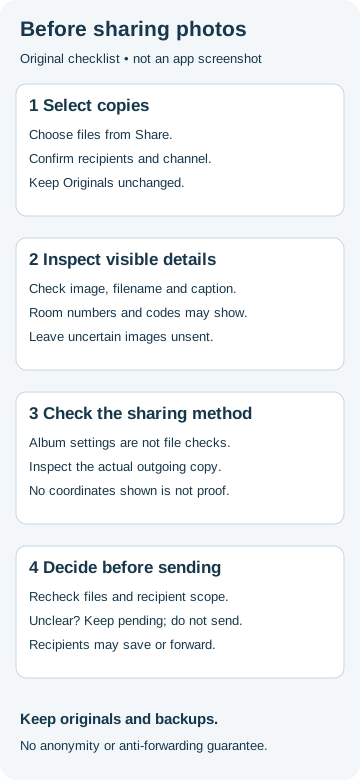
Backup verification and a sharing check serve different purposes. One checks that your files have been preserved; the other checks who will see this selection and what it may reveal. Complete the copy checks above, then select the items needed from Share. Do not send the entire Originals folder or alter originals just to share them.
- Define the scope. Note the recipients, channel and file list. Check that the selection does not include tickets, bookings, address screenshots or pictures a companion does not want shared.
- Inspect the image and its description. Zoom in on house and room numbers, vehicle plates, QR codes and reflections. Read filenames, captions and post text too. Hidden location metadata does not conceal clues in the picture. Leave uncertain items unsent; choosing a different image may be simpler.
- Check the actual sharing method. Apple's guidance describes selecting images in Photos on iPhone/iPad, opening Share → Options, turning Location off, confirming, then choosing a sharing method. This applies to that sharing flow; it is not an instruction here to edit originals or camera permissions. If your interface differs, check the relevant version's help before sending.
- Do not apply album settings to exported files. Google Photos Help distinguishes camera-recorded locations from locations edited within the service. Camera-recorded locations cannot be changed or removed within Google Photos. In-service location edits do not apply to files shared outside it, for example by downloading and emailing them. A hidden map in the album is not proof that an exported file lacks the original location.
- Check recipients before sending. Reopen the actual sharing copy. Use available file information/details to inspect location, then recheck the image, selection, recipients or link-access scope. A details panel without coordinates is not proof of complete removal. If file information or access is uncertain, mark the item “pending” and do not send it. Do not test by uploading it to a public link.
Invented example: you plan to send three scenery photos to two companions. One photo shows a hotel room number, and its exported location status is unclear. Leave that item pending. Check the other two individually for file information, visible content and recipients before deciding whether to send them. Removing one item does not automatically make the other two safe.
Add this to the sharing checklist:
Sharing copy: <filename in Share; no public personal details>
Recipients/channel/link access: <confirmed for this send>
Image, filename and caption: <checked/pending items>
Location information and actual sharing method: <checked/pending>
Decision: <do not send yet/send within confirmed scope>
Originals and independent backup: retained, unchanged
This original editorial checklist is not an anonymisation or anti-forwarding guarantee. Recipients may save or forward what you send. The two additional official sources were consulted on 25 September 2026. No step here requires disabling cloud sync, deleting photos, changing accounts or changing device permissions.
The folder pattern, statuses and 105-file example are original HeTuZhi teaching tools. The three official pages were consulted on 25 September 2026. Check current device and service documentation for the actual formats and capabilities; no workflow guarantees zero failure or certain recovery.